Installing and Configuring Active Directory with PowerShell – Windows Server Core 2016
This is a guide for installing Active Directory using PowerShell. To install Active Directory using Server Manager, please see Installing and Configuring Active Directory – Windows Server 2016.
How-To
Prerequisites
Before Starting, I recommend changing the server name and setting a static IP. Attempting to change these after Active Directory installation can cause headaches. If you are unsure how to do this, please view one of the following articles.
For Server Core 2016 or Server 2016 with Desktop Experience
Configure Server Using Sconfig
For Server 2016 with Desktop Experience
Configure Server Using Server Manager
Installing the Role
1) Open Command Prompt (cmd) as an Administrator
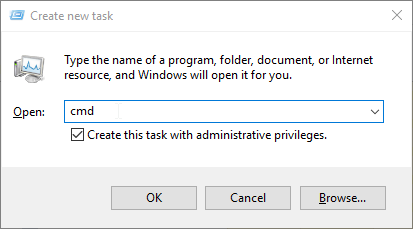
If you are on Server Core this is likely already open. If it is not, hold Ctrl+Alt+Del and select Task Manager. Then choose File -> Run new task, type cmd, select Run with administrative privileges and click OK or hit Enter.
2) Enter PowerShell
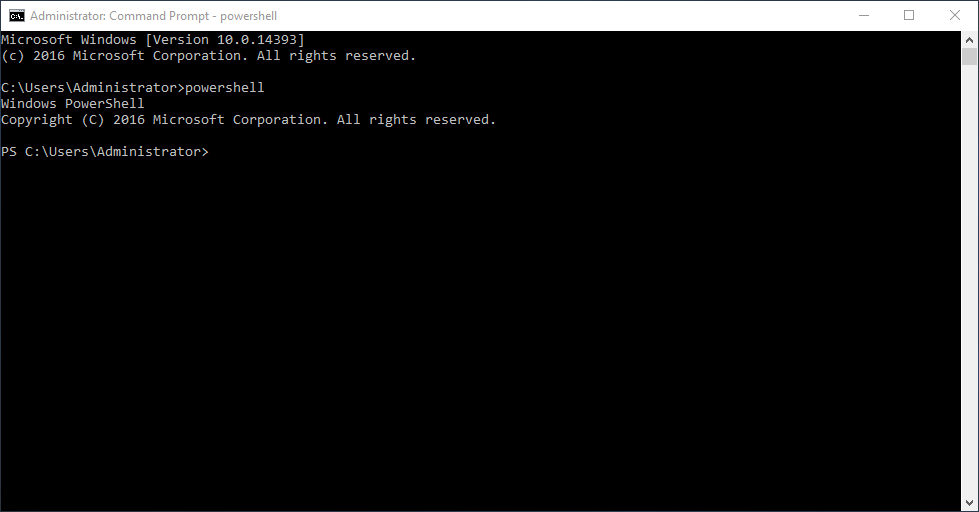
Type the word PowerShell and hit Enter
3) Install the Active Directory Domain Services Feature
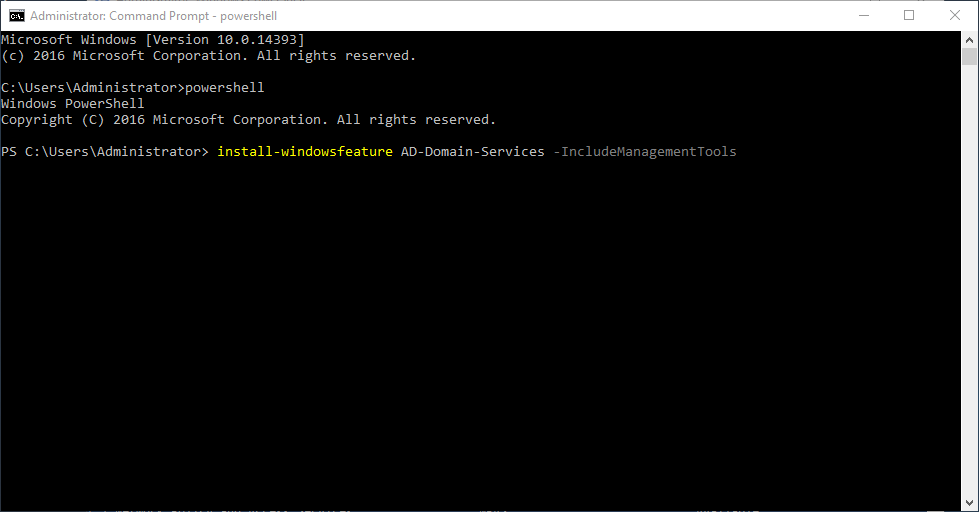
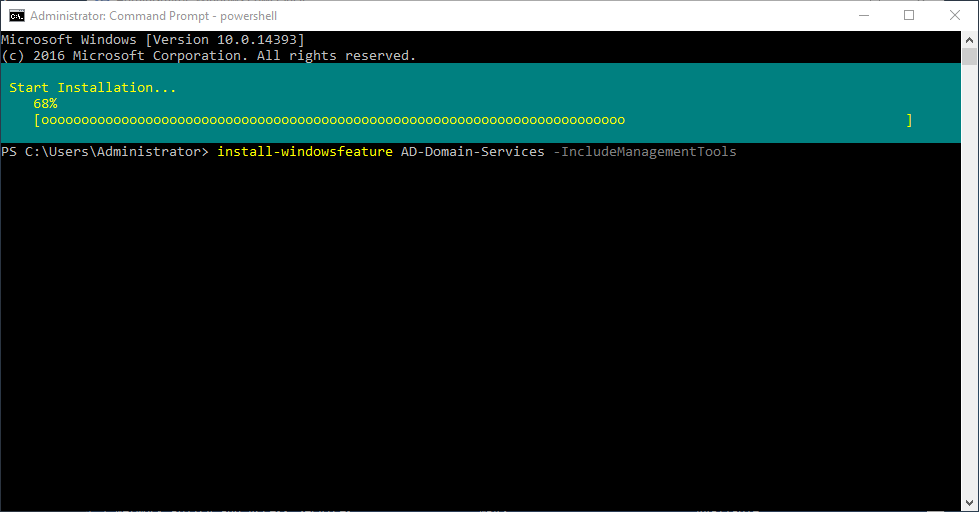
Type Install-WindowsFeature AD-Domain-Services -IncludeManagementTools and hit Enter
You will see a progress bar as pictured below
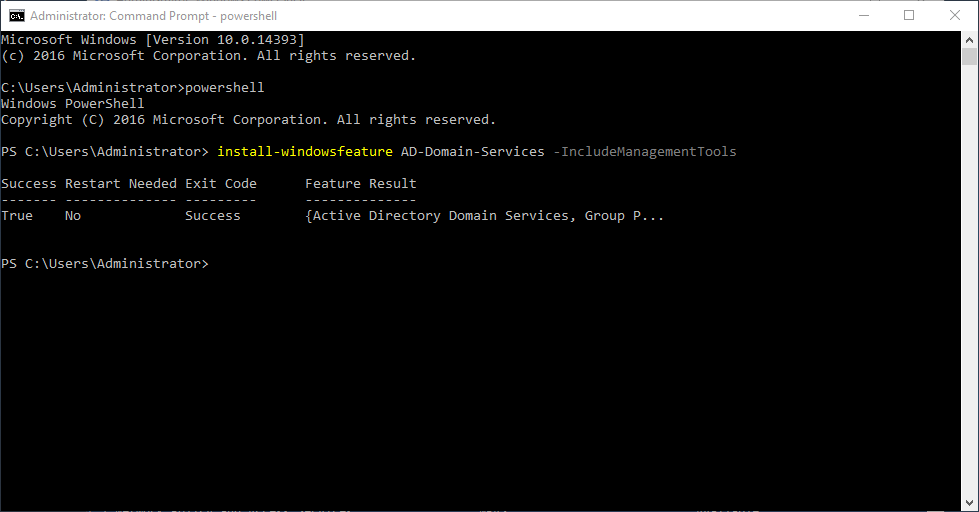
You should see the following output when the install is complete
Configuring Active Directory
4) Install an Active Directory Forest
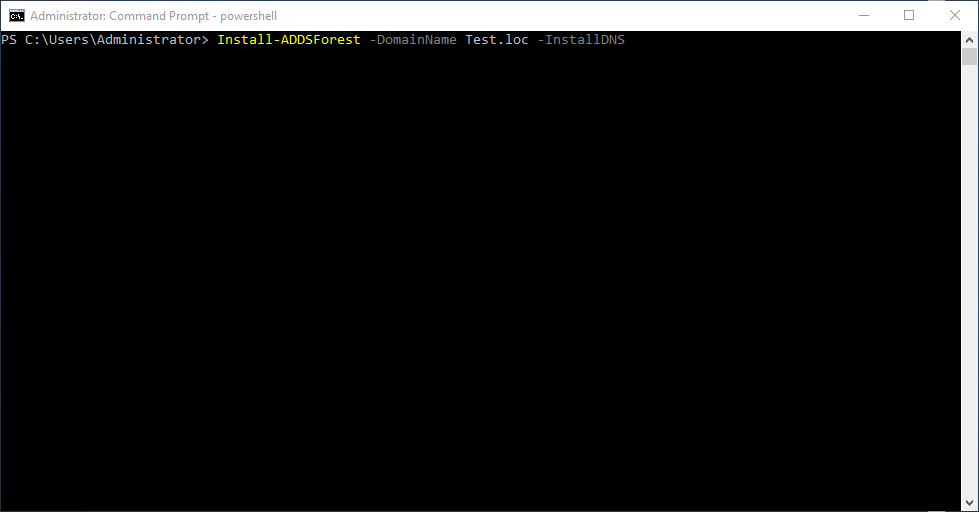
Type Install-ADDSForest -DomainName YOURDOMAINHERE -InstallDNS and hit Enter
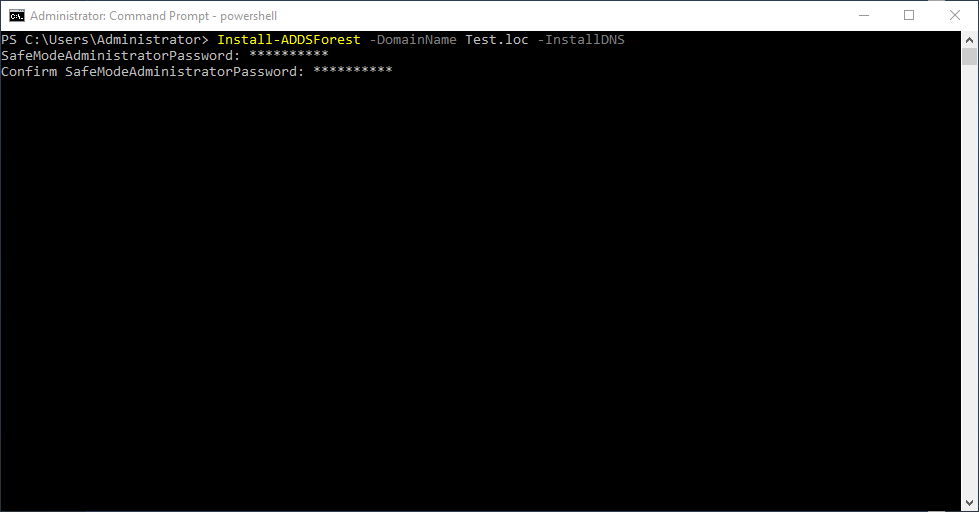
Enter a password you would like to use for Directory Services Restore Mode (DSRM) and hit Enter
Type y and hit Enter (assuming the server can be rebooted at this time)
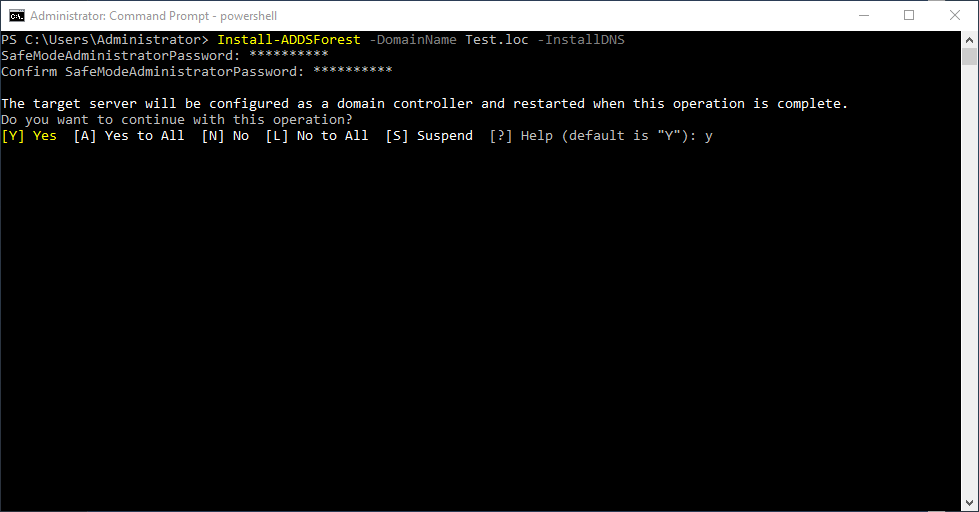
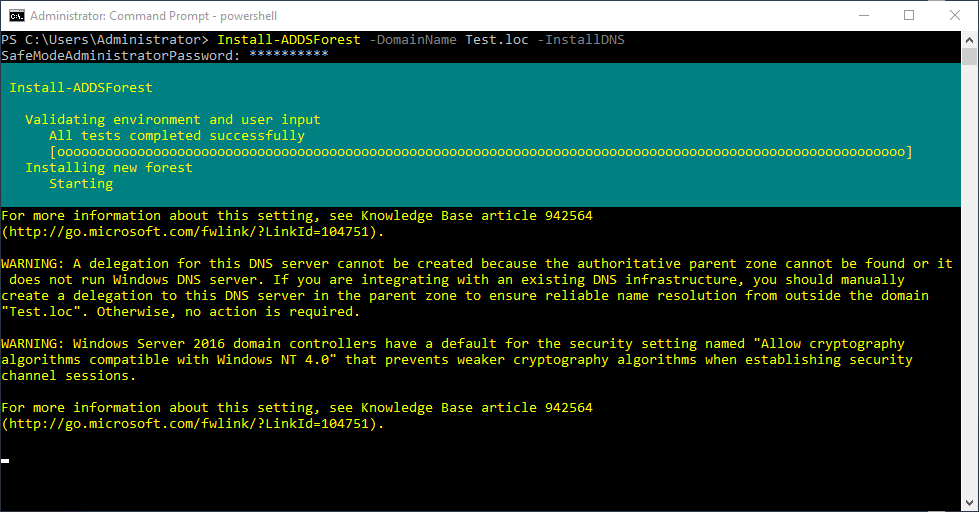
The forest will be installed with the domain you specified
When this is complete the server will reboot
5) Confirm the New Domain was Created Successfully
After the server reboots, log in
Enter PowerShell again by typing PowerShell into Command Prompt and hitting enter
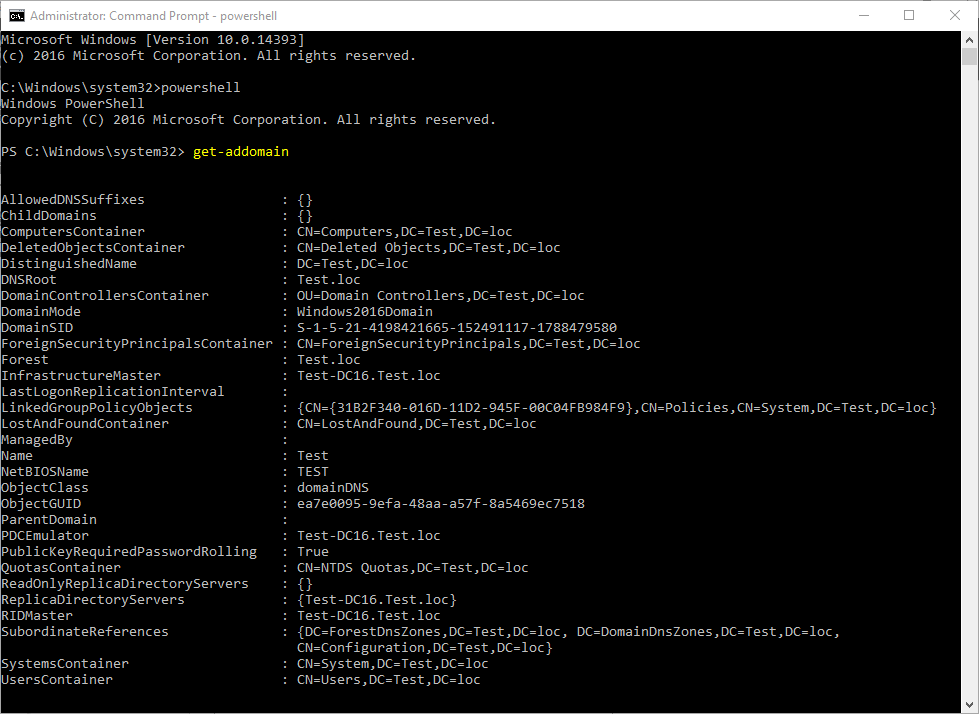
Then type Get-AdDomain and hit Enter
This will show you information about your new Domain
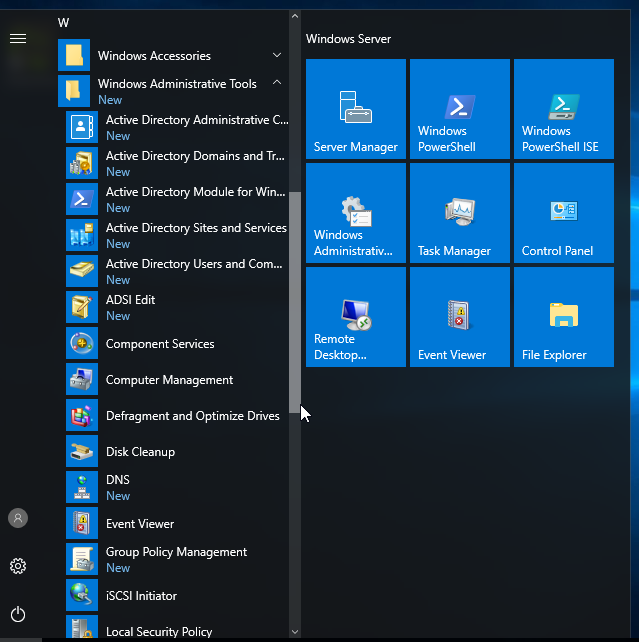
If you are installing onto a server with the desktop experience, you will now see the Active Directory Management tools under Windows Administrative Tools in the Start Menu
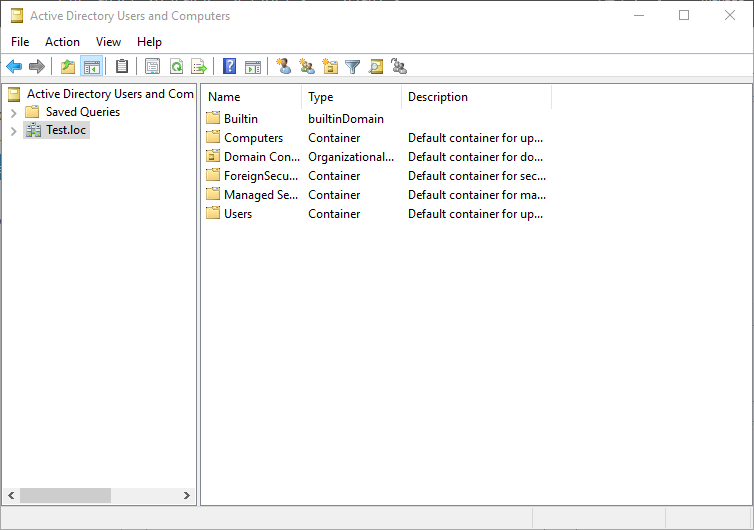
You can also open Active Directory Users and Computers and you will see your new domain listed